A Beginner Tutorial on Google Jitro: The New AI Era Where Goals Replace Prompts

A Beginner Tutorial on Google Jitro: The New AI Era Where Goals Replace Prompts

To understand where we are going, we first need to look at where we are. Currently, many of you might use AI tools like ChatGPT or Gemini by giving them specific instructions. You say, “Write a function for this,” or “Fix this specific bug.” This is known as task-level prompting. While it is helpful, it requires you to be there every step of the way, like a teacher watching a student write every single letter. Google is changing this paradigm with a project internally called Jitro, which is essentially the second version of their AI coding agent known as Jules.

Read More Comments

WhatsApp Adds Chat Lock Codes for Extra Privacy

WhatsApp Adds Chat Lock Codes for Extra Privacy

whatsapp-chat-lock-codes-extra-privacy

WhatsApp has added another chat security element, with a new lock code option that users can enact to keep others out of their chats in the app.

As you can see in this example, you can now apply a unique code to any of your chats, so that nobody else can access them on your device.

“With a secret code you’ll now be able to set a unique password different from what you use to unlock your phone to give your locked chats an extra layer of privacy. You’ll have the option to hide the Locked Chats folder from your chatlist so that they can only be discovered by typing your secret code in the search bar.”

The new option is an expansion of WhatsApp’s Chat Lock, which it rolled out back in May. Chat Lock is primarily designed to help those who share their phone with others, like family members, which is not common practice everywhere, but is fairly usual in some regions. In developing markets like India, for example, lower-middle class families often only have one device that’s shared by the family, with parents and siblings splitting time.


In situations like this, having the capacity to lock down certain chats could be a big benefit, and could provide more privacy for WhatsApp users.

And now, you’ll be able to add another level of privacy, with manual codes to keep people out of your chats.

Though remembering more codes is less than ideal, but if you really want to keep your chats private…

WhatsApp also notes that you can now long press on a chat to lock it, rather than visiting the chat’s settings.

The option adds another level of data privacy and security, which is what WhatsApp hangs its hat on, and as such, it makes sense to give users more options on this front.

Read More Comments

All iPhone 16 Models to Get a Redesigned Action Button: Report

All iPhone 16 Models to Get a Redesigned Action Button: Report


With the launch of the iPhone 15 Pro and iPhone 15 Pro Max, Apple replaced the classic Mute switch with a customizable Action Button. And now, several reports and shreds of evidence suggest that Apple is planning to add a redesigned Action Button to the entire lineup of the iPhone 16 series, which will make its debut in 2024. The Cupertino tech giant is reportedly working to add more functionality to its existing Action Button, and will also switch to a capacitive design rather than a mechanical one.


There were several rumors that Apple would switch to solid-state technology for power and volume buttons on the iPhone 15 Pro models. However, Apple ditched those plans and introduced a new Action Button instead. This button replaced the mute switch which was previously a staple for all iPhone models. Unlike the mute switch, which could only be used to switch between Ringing and Silent models, the Action Button can be configured to perform a which range of tasks.

The Rumored Action Button on iPhone 16 Series
When we didn’t see solid-state technology on iPhone 15 Pro models, it appears the “mechanical” saga will continue on iPhones. Over the past few weeks, we’ve seen numerous reports suggesting the switch from mechanical buttons to capacitive solid-state buttons is in the cards for the entire iPhone 16 lineup. This will allow Apple to add more functionality to the Action Button.

Macrumors reported that the revamped Action Button is under the codename “Altas”, and might feature the similar functionality seen on Home buttons with Touch ID on older iPhone models or Force Touch Trackpad on recent MacBooks.

The story also claims that the updated Action Button will be able to detect the changes in the pressure, all the credit goes to the new force sensor. Also, there are mentions of the “tact-switching functionality”, but at the moment, it’s unclear what this exactly means. It’s worth knowing that the iPhone 16 series is also rumored to include a new “Capacitive Button” with similar functionality.

The report also suggests that the upgraded Action Button will make its way to the iPhone 16, 16 Plus, 16 Pro, and 16 Pro Max. Even the initial prototypes of the iPhone 16 design feature an Action Button. Also, Apple experimented with different sizes for its redesigned Action Button.

With certain configurations, the Action Button was quite larger and resembled more with volume buttons. Even with different hardware configurations across different development stages, the appearance of the Action Button remained a constant. If this happens, it would mark the end of Apple’s Mute Switch era. Currently, only the iPhone 15 Pro & 15 Pro Max have the Action Button, and the iPhone 15 & 15 Plus house the same mute switch.

Moving on, the Action button is also likely to make an appearance on the iPhone SE 4, reportedly planned for 2025. It clearly means Apple has plans to eliminate the dedicated mute switch from all its future iPhones.

While these reports and pre-production information say a lot about Apple’s plans, we still are months away from the final hardware designs. The giant might change its plans, and come up with something different, which may or may not be exciting. We’ll keep you updated as the cycle evolves. For complete details on what to expect from 2024 iPhones, head to our dedicated iPhone 16 series roundup.

Read More Comments

How to check battery health on your Android phone

How to check battery health on your Android phone


You might notice that your phone's battery isn't as robust as it was when you purchased it. Frequently seeing the low battery indicator can get annoying, especially if you feel like you fully charged your phone a few hours ago. Whether you use a high-end or budget phone, the battery degrades over time.


You can check the battery's health by reviewing its details in the settings app or installing third-party apps that offer detailed reports. This guide will walk you through several methods to check your Android phone or tablet's battery health.


Why you should monitor your Android phone's battery health


Battery health is an important indicator. It tells you the rate at which a battery is degrading. It provides information about the battery capacity, temperature, and charging cycles. Most Android phones show basic stats like battery usage by various apps and battery drain details. If you have a Samsung phone, you can get more information about the battery with the Samsung Members app. Use a third-party app like AccuBattery, Battery Guru, or CPU-Z for other phones.

Check battery usage from the Settings app
You can view your phone's battery usage from the settings app. Most phones show which apps consume the most power, while some also display your battery's temperature.

  1. Open the Settings app on your phone.
  2. Select Battery. Or, search for battery from the search bar.
  3. Select Battery usage.


  4. This displays the battery usage since the last full charge. It also shows which apps have been draining your phone's battery.
  5. To view more details, tap the three-dot menu in the upper-right corner.
  6. Select Show full device usage.


  7. Select any app from the menu. You'll see options like Unrestricted, Optimized, and Restricted to manage battery usage.

Check your battery health from the Phone app

You can access Android's hidden diagnostic menu, which shows phone information, usage statistics, and Wi-Fi information. Most phones don't display battery information. Follow these steps to verify if it works on your phone:

  1. Open your Phone app and dial *#*#4636#*#*.
  2. Your phone displays the following screen after you enter the code.
  3. Search for Battery information. It displays details like battery health, charge level, and temperature.


Read More Comments

YouTube Will Now Let You Add More Links To Your Channel Profile

YouTube Will Now Let You Add More Links To Your Channel Profile

 YouTube’s rolling out its expanded link listing display for channels, which will enable creators to add more external links to their channel header.


As you can see in this example, you can now add up to 14 links to your channel profile, which will help to drive traffic to your website, other social media profiles, product pages, etc.

Channel owners are able to customize the titles of their links, while each link will also be shown with the relevant platform icon in the pop-up display. That’ll provide more ways to build your web presence from your YouTube, and could be a valuable option for extending your connections off-platform.

YouTube first previewed the update back in May, as part of a broader refresh of some key channel elements.

Along the same line, YouTube’s also adding some additional channel tabs, like “Courses” for those that have courses enabled, and a “Releases” tab for musicians to showcase their latest tracks and albums.

The idea is that by providing more external linking options, YouTube will be a more attractive home base for creators, which will better ingratiate the platform with its top stars, by working as a growth assistant, as opposed to siloing off each aspect.

It’s a good update, which could drive big value for some users.

YouTube says that the new link display will be visible to all users by August 23rd.


Read More Comments

Here’s When Apple Could Announce The iPhone 15 Lineup And Apple Watch Series 9 To The Public

Here’s When Apple Could Announce The iPhone 15 Lineup And Apple Watch Series 9 To The Public

The iPhone 15 and iPhone 15 Pro models will come with a boatload of major changes in terms of design and new features. The company will potentially send out event invites in the coming weeks but has not shared a word on the event date. We are now hearing that the company will host its special event on September 12 to announce the new iPhone 15 lineup and Apple Watch Series 9.

iPhone 15 event is expected to take place on September 12, while the launch is expected on September 22
Typically, Apple sets the iPhone 15 launch event date in the first half of September. Following the announcement, the devices go on sale a week after. While the company has not announced its dates yet, prominent industry analyst Mark Gurman states that Apple will host its iPhone 15 launch event on September 12. Additionally, it will likely be an in-person event, similar to the WWDC 2023 event in June. It will potentially be a pre-recorded event, following the same format as 2022.

It was previously coined by the analyst that the event could take place on either September 12 or 13 but in his latest tweet, Gurman suggests that "signs are increasingly pointing to Sept.12" as the iPhone 14 launch event date. However, he also mentions that these are mere speculations and that the company could announce the event at another date.

If the company does hold its special event on September 12, it would mean that the devices will be available for pre-order on the 15th while the devices will hit the shelves on September 22. However, as the analyst notes, be sure to take the news with a grain of salt since the final word rests with Apple. At the event, the company will announce its highly anticipated iPhone 15 and iPhone 15 Pro models alongside the Apple Watch Series 9 and Apple Watch Ultra 2.


The iPhone 15 models are expected to bring Dynamic Island with upgraded internals and an improved camera system. Additionally, USB-C would replace the Lightning port on the entire lineup. For the 'Pro' models, we are expecting a 3nm A17 Bionic chip for enhanced performance and efficiency alongside upgraded camera sensors for better low-light photography. In terms of design, the iPhone 15 Pro will feature a new Action Button instead of the Mute Switch enclosed in a grade 5 titanium housing.

These major changes would potentially make the iPhone 15 lineup worth the upgrade, but the company is also expected to increase the prices. The iPhone 15 models could see a minor price increase, while the 'Pro' models are speculated to go up by as much as $200. We will be covering the iPhone 15 launch event in extensive detail, so be sure to stick around.
Read More Comments

7 Cool & Useful New Features For Android Smartphones and Wear OS

7 Cool & Useful New Features For Android Smartphones and Wear OS

Google has released another Android 13 feature drop, and this time, it comes with features for both smartphone users and those who use a Wear OS smartwatch. Every year, Google releases a new version of the Android operating system, and along with it come new features for compatible devices. Not to be confused with Pixel Feature Drops, these are available to all Android devices.

The June feature drop for Android 13 users should be the last before Google rolls out Android 14 for devices later in the year. It comes with several useful features, like Reading Practice, new Emoji Kitchen stickers, Dark Web leak reports for more users, new widgets, Google Keep for Wear OS, and more. Here are the best new features for Android smartphones and Wear OS.

7. Reading Practice With Real-Time Feedback


As part of its June feature drop, Android is adding a new feature to the Google Play Books app that helps users improve their vocabulary, pronunciation, and comprehension skills for the English language. With Reading Practise, users can practice reading with on-screen text, check how a word is pronounced, look up word definitions, and much more. It's quite helpful, especially for young kids or anyone trying to learn the basics of English.

6. Emoji Kitchen Expands With Marine Animal Stickers

Android's Emoji Kitchen has been around for a while. It lets users experiment with different emojis, combine their characteristics, and create new stickers. With the latest feature drop, Android has added new aquatic-themed emoji to Gboard's Emoji Kitchen including a dolphin, shark, and whale. Users can remix these with their favorite emojis, such as teary eyes or surprise face, to get entirely new stickers from Emoji Kitchen.

5. Dark Web Leak Reports

Dark Web report, a feature announced for Google One users in March 2023, is now available for "most Google accounts in the U.S. to use on the Google One website and app." It allows users to run scans on the dark web and check whether their email address has been exposed. Further, users can also check whether other personal information, such as their social security number, is leaked on the dark web. In the coming months, the feature will roll out to more than 20 countries, says Google in a blog post.

4. Widgets For Stocks And News Headlines

The June feature drop also brings three new widgets to Android users. These widgets will help users customize their phone or tablet's home screen. The first widget offers users personalized TV shows and movie recommendations via Google TV. Another widget helps users track select stock prices with Google Finance on their home screen. Last but not least, a Google News widget helps users get curated headlines and stay updated with recent developments in the world.

3. See Pinned Notes & To-Do Lists On Wear OS

This time around, Google has also released several features for Wear OS devices. One of these features includes access to a to-do list on a smartwatch. Using Google Keep for Wear OS, users "can add a tile for fast access to a selected note or a to-do list." To see the list, users can simply swipe through their tiles. The feature will allow users to keep track of their schedule, shopping list, etc. without accessing their smartphone.

2. New Spotify Tiles For A Better Wear OS Experience

Along with the to-do list, Wear OS has also released a Spotify tile that enables users to listen to their playlists right from the smartwatch. The tile allows users to play/pause music, skip to the next/previous track and view other tracks in a playlist. Interestingly, the Spotify tile has a personal AI DJ that recommends songs based on users' preferences and streams episodes from their podcast lists.

1. Nearby Share For Windows Beta

To improve connectivity between Windows and Android devices, Google has released Nearby Share beta for Windows. The feature lets Android users share files, such as photos, videos, or documents, with their Windows PC wirelessly. Users must download the Nearby Share app on their Windows PC and set it up. Then, they can just hit Nearby Share for a file on their Android phone and select their PC from the available devices list.

Source: Google


Read More Comments

How to Get Access to GPT-4 Right Now!

How to Get Access to GPT-4 Right Now!


Merely hours after Google announced its PaLM AI model to challenge GPT-3, OpenAI spoiled their fun and took over the internet with the announcement of GPT-4. And it makes sense for people to take note as it brings some significant upgrades over GPT-3. This next-gen large language model (LLM) is no longer limited to text but now has vision too, enabling you to input images and query the AI model soon. That said, if you wish to experience GPT-4 on ChatGPT’s website right now, you will have to spend money as the new model is not free to use. So, let us learn how you can get access to GPT-4 today with ease.

How to Use GPT-4 Right Now (2023)
In this article, we have explained two simple methods to get access to GPT-4 right now. You don’t have to wait for any integrations or the API release to experience the new AI model. Before that, let’s quickly talk about what’s new in OpenAI’s GPT-4 model.

What Is OpenAI’s New GPT-4 AI Model?
We all know that ChatGPT can do a ton of cool things and there are a plethora of ChatGPT prompts to get the perfect answer to questions, but OpenAI is greatly improving on its capabilities with GPT-4. Compared to GPT-3, which powers your favorite ChatGPT AI chatbot, the latest GPT-4 model is multimodal. As mentioned above, it means that the LLM will now be able to accept both text and image inputs from users. The new GPT-4 model from OpenAI will soon allow image inputs, which it will be able to analyze and answer your questions. Right now, only the text capabilities of the new LLM are available to try out via ChatGPT.

How to Access GPT-4 AI Model (Official Method)
OpenAI has played it smart and made GPT-4 available only to ChatGPT Plus subscribers. That means you will need to pay $20 per month to access the latest model from OpenAI. Here’s how to get access to it:

1. First, head to the ChatGPT website using the link here and log into your existing account. Make a new account if you don’t already have one.


2. Once logged in, you will see the “Upgrade to Plus” option in the bottom left corner. Click on it.


3. Next, in the pop-up that opens, click the green “Upgrade plan” button under ChatGPT Plus. As mentioned here, ChatGPT gets you priority access to new features, and rightfully so, with GPT-4.

4. On the next page, you need to enter your payment details and billing address in the right pane. Once you have entered the details, click the “Subscribe” button.

Note: Unfortunately, users are unable to complete payments on the OpenAI website to get ChatGPT Plus in India. As per multiple social media posts, all credit/debit cards – be it Visa, Mastercard, American Express, etc. – are failing. We hope OpenAI acknowledges the issue and allows Indian users to use ChatGPT Plus in India.


5. After your payment is complete, you will successfully become a ChatGPT+ subscriber. You can now use the new GPT-4 model and other older AI models with ease. From the drop-down menu on your screen, select “GPT-4” to get started.


6. You can now input your queries in the text box on the right pane and interact with the more powerful and responsive GPT-4-powered ChatGPT chatbot. Here are a few examples, do check them out:


How to Use GPT-4 AI Model for Free
As confirmed in our initial coverage, OpenAI will not be offering free access to GPT-4 via its ChatGPT chatbot anytime soon. Further, it adds that it hopes to “offer some amount of free GPT-4 queries” to free tier users sometime in the future.

Well, if you are one of those free users and don’t wish to spend money to get the ChatGPT Plus subscription, we have a free alternative for you. And it is Microsoft Bing’s new AI chat feature. Yeah, in an official blog post, Microsoft has confirmed that its Bing AI service is running on GPT-4.


Moreover, a huge benefit of using Bing AI over the GPT-4 model on ChatGPT’s website is the knowledge base. While GPT-4 is still limited to the September 2021 dataset, Bing AI chat is plugged into the internet and can answer queries related to real-time events as well. But, do remember that Bing AI is currently limited to 15 responses in a single conversation.

So, go ahead and test out ChatGPT alternative Bing AI in the Edge browser right now. And if you don’t wish to use Edge, read our guide on how to access Bing AI chat in any web browser.

Try Out the GPT-4 Model in ChatGPT Today
In conclusion, you will need to get the ChatGPT+ subscription if you wish to officially access the new GPT-4 AI model from OpenAI. But, in our testing, we have found Bing AI to be pretty responsive and helpful with our queries. So, are you excited about the possibilities unlocked by the text-cum-vision AI model that is GPT-4? Let us know your thoughts in the comments below.


Read More Comments

Does Apple Watch Track Blood Pressure? What You Need To Know

Does Apple Watch Track Blood Pressure? What You Need To Know

The Apple Watch is a health and fitness-centric smartwatch that features a collection of sensors used to detect some of the wearer's vital signs, but is blood pressure monitoring supported? Apple's lineup of smartwatches includes health features that can vary based on the model and series, and the company typically improves on these with each upgrade. The Apple Watch SE, a cheaper version of the smartwatch with slightly limited features, has its own functionalities separate from the standard Apple Watch.

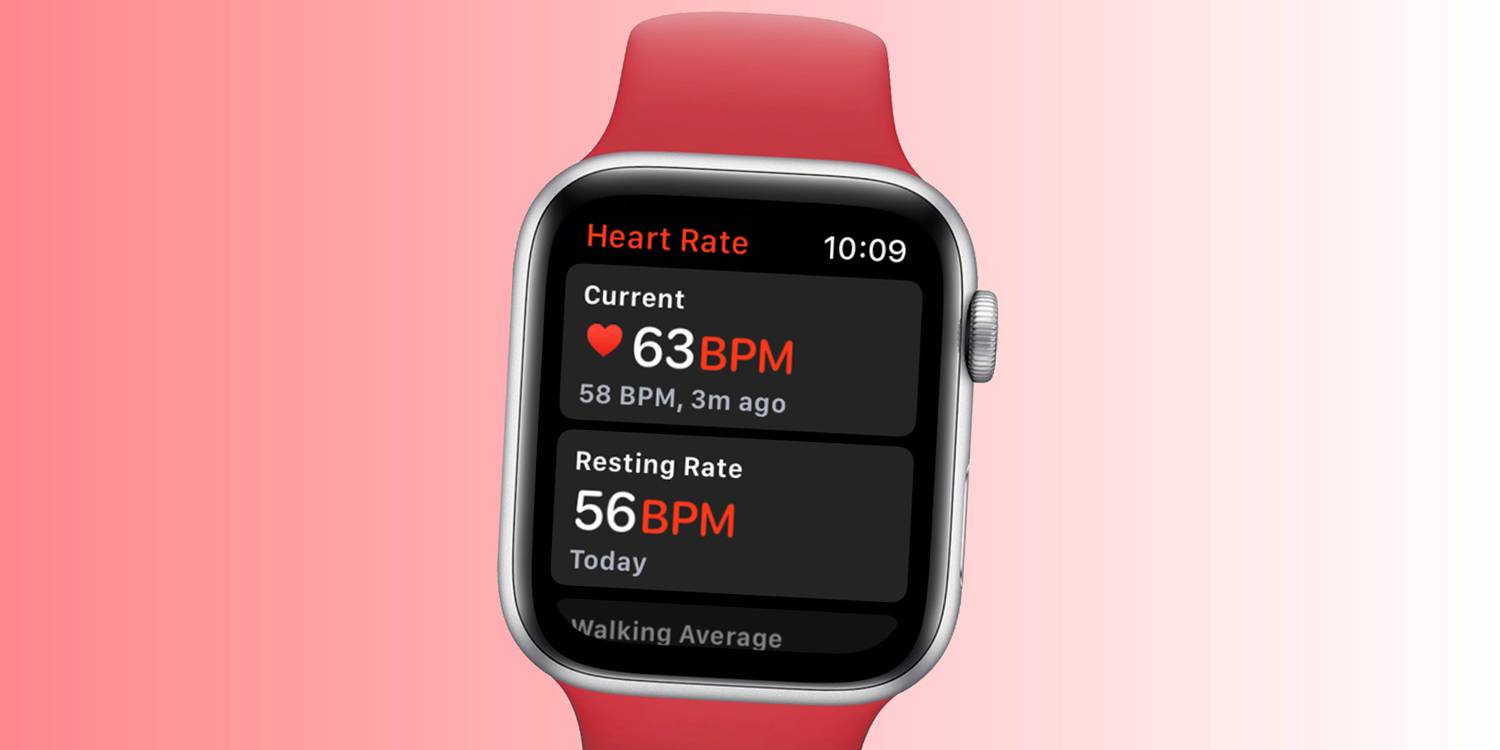
Though the Apple Watch features a collection of health sensors — from a heart rate sensor to an electrocardiogram to a blood oxygen sensor — true blood pressure monitoring is not supported on the smartwatch. A few applications claim to provide the functionality, but they fall short unless an external blood pressure monitor is connected. As per Bloomberg's Mark Gurman, Apple plans to add blood pressure monitoring to the Apple Watch in the future along with other health sensors. These include blood glucose monitoring and blood alcohol tracking, but some of these features require government approval before being released to the public.

View BP Data On Apple Watch With An App


The Apple Watch doesn't provide a blood pressure monitor, but it does include a heart rate sensor and an electrocardiogram. This is good news for people concerned about hypertension, since heart rate and blood pressure have a positive correlation, according to a study by the University of Minnesota (via NCBI). Researchers concluded that "elevated heart rate is associated with increased peripheral blood pressure, increased risk for cardiovascular disease, and is modifiable." That means Apple Watch users might be able to get an idea of their blood pressure state through heart rate readings. However, if someone is concerned about their blood pressure or needs to track it for health reasons, using appropriate medical equipment is recommended.

There are also legitimate ways to track blood pressure using an Apple Watch, even though it isn't possible on-device. Third-party blood pressure monitors from brands like QardioArm, Withings, and iHealth can connect to Apple's Health app on the iPhone to provide blood pressure data. This data can then be viewed on the wearer's wrist with an Apple Watch app, which can be useful for constant monitoring. They work similarly to other health monitors, like constant glucose monitors, that continually collect data that can be viewed on Apple Watch.

Although the Apple Watch doesn't include a blood pressure monitor yet, it can still provide a solid picture of the wearer's heart health. Apple Watch wearers can use the device to check their heart rate at any time, whether on demand or while doing an activity. Those who are actively monitoring these stats can also set up notifications so the watch will alert them if their heart rate drops too low or climbs too high. With newer versions of the Apple Watch software, watOS 5.1.2 or later, wearers can also use the device to monitor their heart rhythm and receive notifications about irregular patterns. With Series 4 Apple Watch and more recent models, users can also take an electrocardiogram using the watch and Apple’s ECG app.

Source: Apple, NCBI
Read More Comments

Is Samsung Galaxy Watch 4 Waterproof? What You Need To Know

Is Samsung Galaxy Watch 4 Waterproof? What You Need To Know


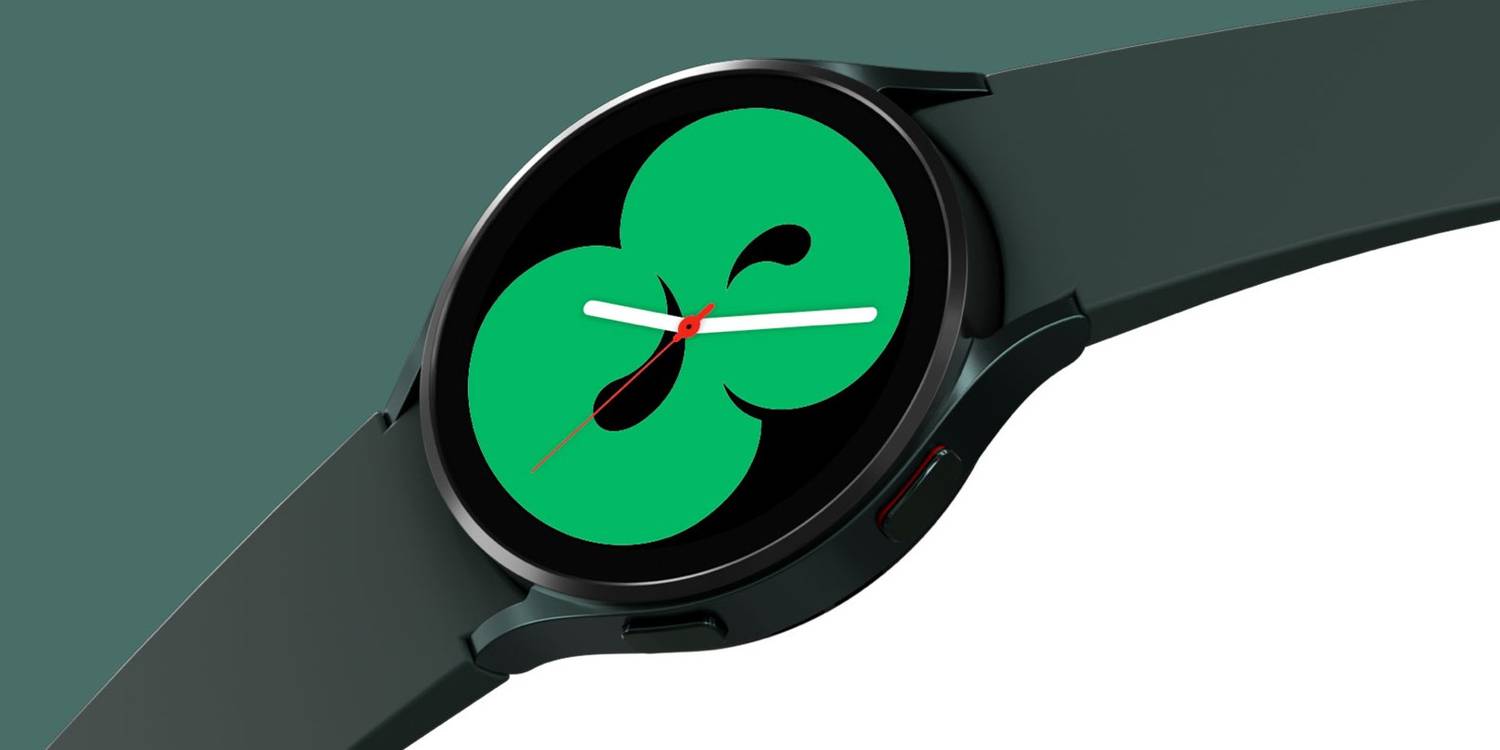
The Galaxy Watch 4 is still a great smartwatch to buy despite already having a successor in the form of the Galaxy Watch 5, but can Samsung's wearable survive encounters with water? Several Samsung smartphones have some form of water resistance, including the Galaxy Z Flip 4 and Galaxy Z Fold 4 foldables. Even Samsung's truly wireless earbuds have protection against sweat and splashes of water, making them suitable for use when working out. However, none of these products are completely waterproof.

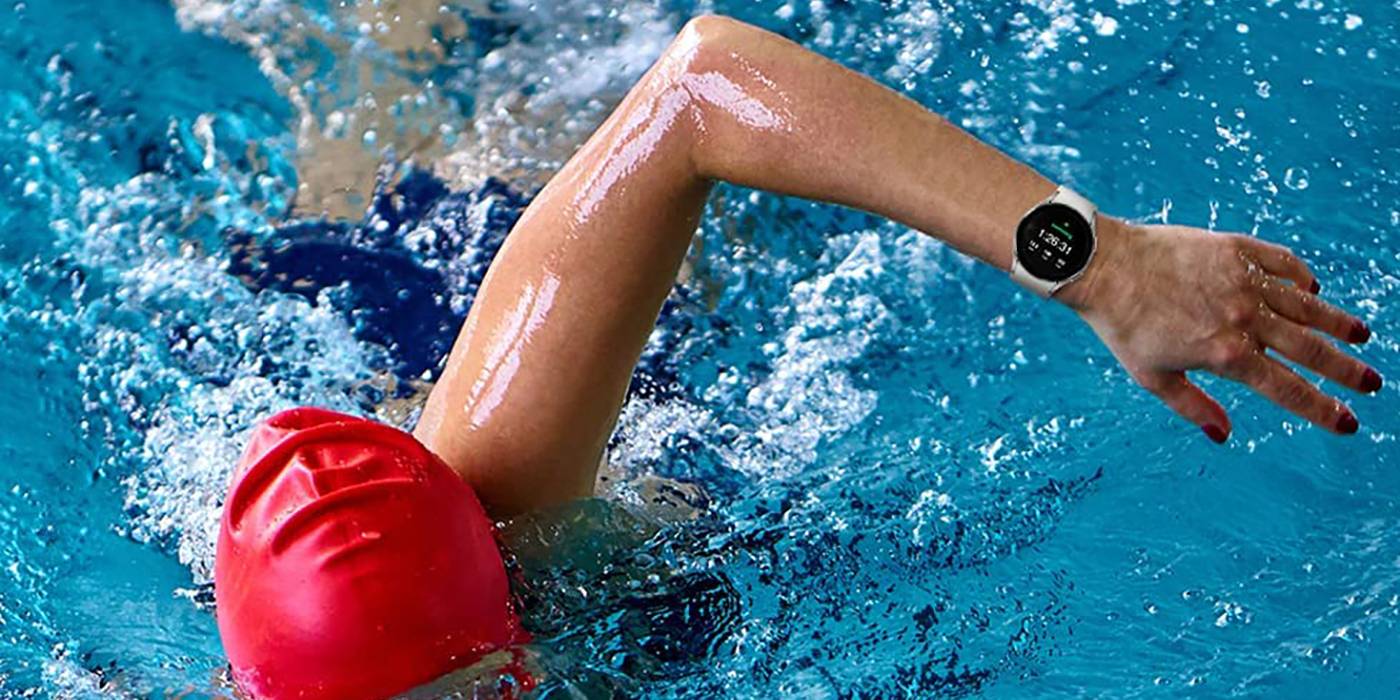
The Galaxy Watch 4 was announced in 2021 as the first smartwatch to run Wear OS 3, developed by Samsung and Google. The smartwatch packs multiple sensors and is capable of measuring heart rate, blood oxygen levels, blood pressure, and taking ECG readings. It also has a sensor for measuring body composition, similar to a smart scale. The Galaxy Watch 4 has an IP68 rating which means it can withstand dust, dirt, and sand, and is water-resistant in up to 5 feet (1.5 meters) of water for up to 30 minutes. This level of water resistance makes the Galaxy Watch 4 suitable for use in diverse wet conditions.

Not All Listed Water Sports Modes Are Safe


The Galaxy Watch 4 can be worn in the rain, submerged underwater, and even track some water-based activities. However, users should keep in mind that Samsung warns on a support page that “the watch is not intended for scuba diving.” It also suggests that users avoid high-velocity activities like water-skiing, windsurfing, kite surfing, and rafting. That's despite listing these activities within its supported sports modes, which include swimming, aqua aerobics, canoeing, kayaking, kite surfing, rafting, rowing, sailing, scuba diving, snorkeling, water-skiing, and windsurfing. To be safe, users should avoid wearing their watch when partaking in deep water or high-velocity activities.

Thus, it is advised that the Galaxy Watch 4 be limited to tracking swimming, canoeing, and aqua aerobics, as these are not high-velocity activities. In addition, it is recommended that the watch is rinsed in fresh water after using it in seawater. This is to remove the salt from seawater which can cause corrosion. After coming in contact with water, users should dry the watch with a clean and soft towel. It should also not be charged when wet.


Can You Shower With Your Galaxy Watch 4 On?


This level of water-resistance means the Galaxy Watch 4 is safe to wear in the shower, too. That’s good news for those who almost never take their watch off, eliminating one extra step (or the possibility of a broken device in forgetful moments) when it’s shower time. However, Samsung notes that the watch should not be exposed to water at high-pressure levels such as water from a high-pressure tap or hose, so users should be mindful.

Whether swimming or hopping into the shower, it’s best to turn on the Water Lock Mode to keep the device protected and prevent accidental inputs from the water touching the screen. This can be done by opening ‘Quick settings’ and tapping the icon for ‘Water lock mode.’ Users can also enable it by going to ‘Settings’ from the Home screen, then ‘Advanced features,’ and tap the ‘Water lock’ toggle. Initiating certain workout modes, like swimming, will turn this on automatically. Galaxy Watch 4 users should also note that their smartwatch can lose its water resistance if it is dropped on the floor and suffers structural damage.

Source: Samsung
Read More Comments

Pixel 7a Vs. Pixel 7: It's Actually Kind Of Ridiculous How Similar These Phones Are

Pixel 7a Vs. Pixel 7: It's Actually Kind Of Ridiculous How Similar These Phones Are

The Pixel 7a is here, and instead of being similar to its predecessor, its features and design make it much more like the Pixel 7. Last year, the Pixel 6a took the stage as one of the most popular smartphones in the sub $400 segment. Although the Pixel 6a looked like the Pixel 6, the differences between these smartphones outweighed the similarities. That changes with the Pixel 7a.

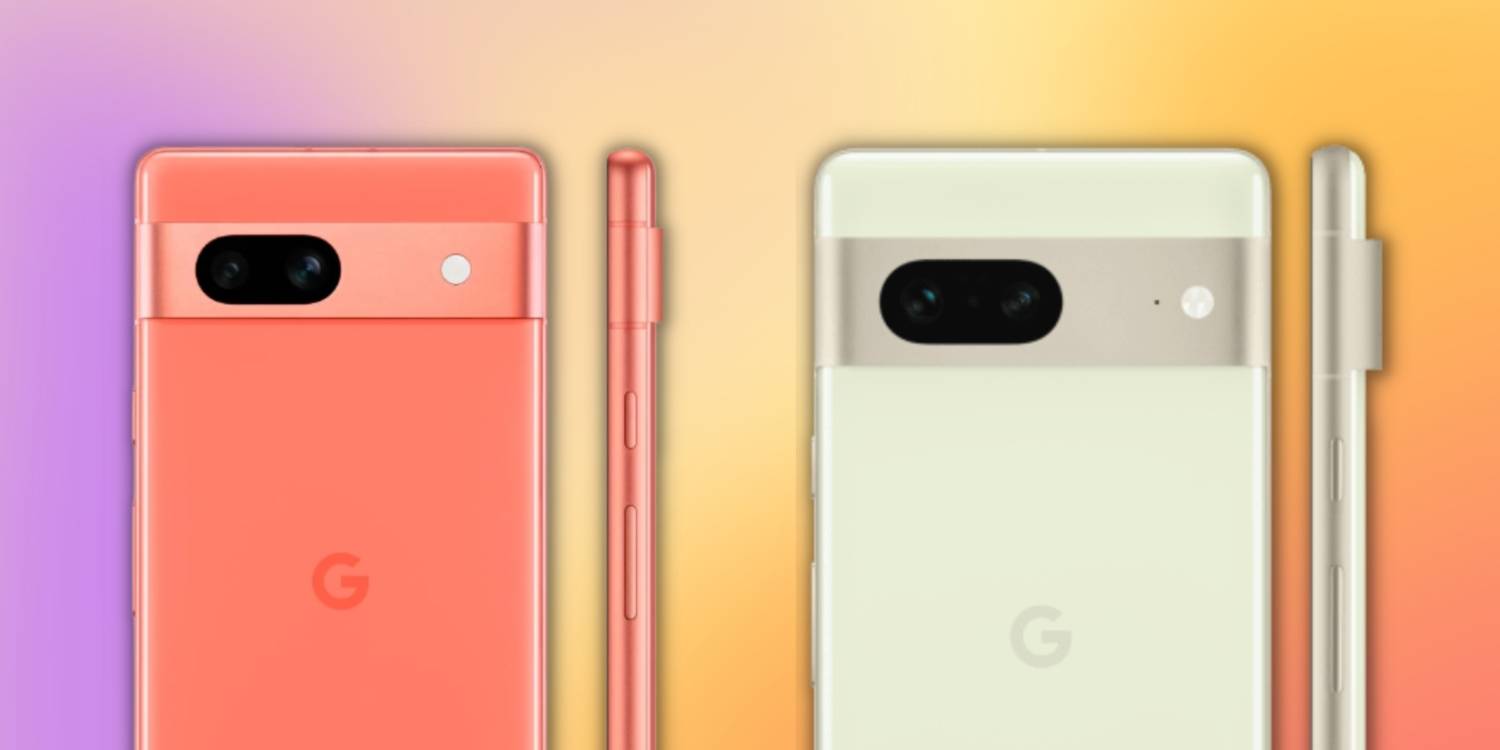
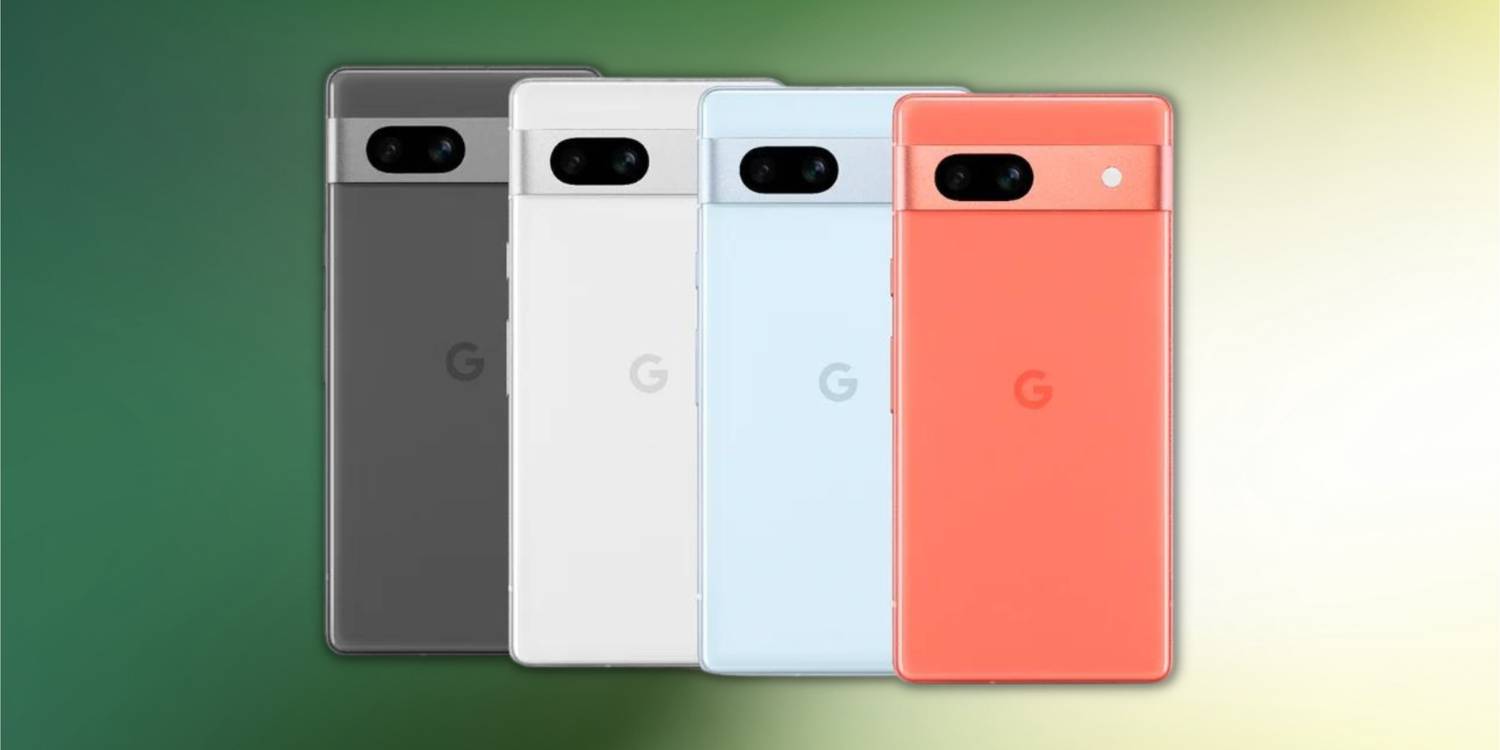
The Pixel 7a looks and feels similar to the Pixel 7, though there are some differences on the outside. The latter provides better screen protection as it features the Corning Gorilla Glass Victus, compared to the Gorilla Glass 3 on Pixel 7a. The flagship's rear panel is also made of Victus, whereas the more affordable option has a well-built plastic back. While the Pixel 7 comes in three colors — Obsidian, Snow, and Lemongrass — the Pixel 7a is available in Charcoal, Snow, Sea, and an exclusive, online-only Coral color.

Pixel 7a Vs. Pixel 7: Screen, Processor, And Cameras


The Pixel 7 has a slightly larger 6.3-inch display with narrower bezels than the 6.1-inch display on the 7a. However, both OLED panels support up to 90Hz refresh rate and have a similar resolution. Under the hood, both phones are equally powerful, as they feature Google's Tensor G2 (5nm) chipset and 8GB of LPDDR5 RAM. However, the company limits the A series model to 128GB of storage, whereas the high-end device offers up to 256GB of storage.

Cameras are where the Pixel 7a vs. Pixel 7 comparison gets really interesting. Last year's Pixel 7 came with a 50MP (f/1.9) primary sensor, a 12MP (f/2.2) ultrawide lens, and a 10.8MP (f/2.2) selfie shooter. Well, the Pixel 7a, which is about $100 cheaper, features a relatively small but sharper 64MP (f/1.9) main camera, along with two new 13MP (f/2.2) ultrawide and 13MP (f/2.2) front sensors. With these sensors, photos and videos taken with a Pixel 7a should be nearly as good as those captured on a Pixel 7.

Although Google has reserved the features like Cinematic Blur for the premier Pixel 7, other features like Magic Eraser, Real Tone, Face Unblur, and Night Sight are available on both phones. To power the chipset and the cameras, the Pixel 7a has a 4,385 mAh battery (up to 18W wired charging), similar to the 4,355 mAh battery (up to 20W wired charging) on the Pixel 7. The low-cost model also supports wireless charging, albeit at a slower rate.


Pixel 7a Is A More Affordable Pixel 7


Other features on both phones include an in-display fingerprint unlock, Titan M2 security chip, VPN by Google One, dual speakers, and Wi-Fi 6e. Android updates are yet another aspect where Google follows a similar approach. From the phones' launch date, the company promises three years of Android and five years of security updates for both phones. Given that both smartphones are absurdly alike, buyers could make their decision based on the price.

Pixel 7 (128GB) frequently drops to $499, making it a better deal. If someone wants a higher storage variant, Pixel 7 (256GB) is the only option. On the other hand, if someone wants a phone that will last longer and doesn't mind slower wireless charging, the $499 Pixel 7a is an equally good option. For all intents and purposes, the Pixel 7a is a more affordable Pixel 7.


Source: Google 1, 2


Read More Comments

How to Make a Micro Niche Website: A Step-by-Step Guide

How to Make a Micro Niche Website: A Step-by-Step Guide

Micro Niche Website Creation

Are you looking to start a micro niche website? If you're not familiar with the term, a micro niche website is a small website that focuses on a particular topic or niche. These sites are designed to attract a highly targeted audience and generate revenue through affiliate marketing, advertising, or selling products.

In this post, we'll show you how to make a micro niche website from scratch, step-by-step.


Step 1: Choose Your Niche

The first step in creating a micro niche website is choosing your niche. It's important to choose a topic that you're passionate about and that has the potential to generate revenue. Do some research and find a niche that's not too broad but has enough demand to be profitable.


Step 2: Do Keyword Research

Once you've chosen your niche, it's time to do keyword research. This will help you identify the most important keywords in your niche and the competition for those keywords. Use tools like Google Keyword Planner, Ahrefs, or SEMrush to find the right keywords for your website.


Step 3: Buy a Domain Name and Web Hosting

Now that you've identified your niche and keywords, it's time to buy a domain name and web hosting. Choose a domain name that's short, memorable, and easy to spell. Make sure your web hosting provider is reliable and offers good customer support.


Step 4: Install WordPress and Choose a Theme

Next, you'll need to install WordPress on your website. This is a free and user-friendly platform that will help you build and manage your website. Choose a theme that's optimized for your niche and that looks professional.


Step 5: Create Quality Content

The most important part of any website is its content. Create quality content that's informative, engaging, and optimized for your keywords. Make sure your content is unique and adds value to your audience.


Step 6: Promote Your Website

Once you've created quality content, it's time to promote your website. Use social media, guest posting, and other marketing techniques to drive traffic to your site. This will help you attract the right audience and generate revenue.


FAQs


Q: How long does it take to create a micro niche website?

A: It depends on your experience and the complexity of your website. It can take anywhere from a few days to a few weeks to create a micro niche website.


Q: Can I make money with a micro niche website?

A: Yes, you can make money with a micro niche website. The key is to attract the right audience and generate revenue through affiliate marketing, advertising, or selling products.


Q: Do I need coding skills to create a micro niche website?

A: No, you don't need coding skills to create a micro niche website. WordPress is a user-friendly platform that doesn't require coding knowledge.


Conclusion

Creating a micro niche website is a great way to turn your passion into profit. Follow these steps to create a website that attracts the right audience and generates revenue. Remember to choose your niche wisely, create quality content, and promote your website effectively. With a little effort, you can create a successful micro niche website that generates income for years to come.

Read More Comments

How To Watch Amazon Prime Video Offline On Your Mac: A Comprehensive Guide

How To Watch Amazon Prime Video Offline On Your Mac: A Comprehensive Guide

amazon prime logo

Are you tired of being tethered to an internet connection just to watch your favorite shows on Amazon Prime Video? Don't worry, you're not alone. Luckily, there's a way to watch Amazon Prime Video offline on your Mac, and in this article, we'll show you how to do it step-by-step.

Introduction

Amazon Prime Video is one of the most popular streaming services available today, offering users a vast selection of movies and TV shows. However, one of the biggest drawbacks of the service is that it requires a stable internet connection to stream content. This can be a problem if you want to watch your favorite shows while traveling or in areas with poor connectivity. But, don't worry, as we have got you covered. In this article, we'll guide you on how to watch Amazon Prime Video offline on your Mac, so you can enjoy your favorite shows without any internet connection.


How To Watch Amazon Prime Video Offline On Your Mac

Let's dive into the step-by-step process to watch Amazon Prime Video offline on your Mac:


Step 1: Download and Install Amazon Prime Video

The first step is to download and install the Amazon Prime Video app on your Mac. You can download it from the Mac App Store or directly from the Amazon website.


Step 2: Log in to Your Amazon Prime Account

After downloading and installing the app, open it and log in to your Amazon Prime account using your login credentials.


Step 3: Choose the Content You Want to Download

Now, select the movie or TV show that you want to download. Once you've chosen your desired content, click on the "Download" button.


Step 4: Check the Download Status

After clicking on the download button, you can check the status of your download by clicking on the "Downloads" tab. Here you can see the progress of your downloads.


Step 5: Watch Amazon Prime Video Offline on Your Mac

Once your download is complete, you can watch your downloaded content offline on your Mac by opening the Amazon Prime Video app and clicking on the "Downloads" tab. Here, you can find all your downloaded content, and you can watch it without an internet connection.


Why Should You Watch Amazon Prime Video Offline on Your Mac?

Watching Amazon Prime Video offline on your Mac has several benefits. Firstly, it allows you to watch your favorite shows and movies even when you don't have access to the internet. This is particularly useful when you're traveling or in areas with poor connectivity. Secondly, downloading content can also save you data and money, especially if you're using a limited data plan.


FAQs

Here are some frequently asked questions about how to watch Amazon Prime Video offline on your Mac:

1. Can I download any movie or TV show on Amazon Prime Video?

No, not all movies and TV shows are available for download on Amazon Prime Video. However, most of the popular content is available for download.


2. How many times can I download a movie or TV show on Amazon Prime Video?

You can download a movie or TV show on Amazon Prime Video as many times as you want. However, you should note that the downloaded content is only available for a limited period, after which it will expire.


3. How long does it take to download a movie or TV show on Amazon Prime Video?

The download time depends on various factors, such as the speed of your internet connection and the size of the file. However, on average, a one-hour TV show takes

4. Can I watch my downloaded content on another device?

Yes, you can watch your downloaded content on another device as long as you're logged in to your Amazon Prime account and the device is compatible with the Amazon Prime Video app.


5. Can I download content in HD on Amazon Prime Video?

Yes, you can download content in high definition (HD) on Amazon Prime Video. However, you should note that downloading HD content will take up more storage space on your device.


6. How do I delete downloaded content on Amazon Prime Video?

To delete downloaded content on Amazon Prime Video, go to the "Downloads" tab and click on the "Edit" button. From there, you can select the content that you want to delete and click on the "Delete" button.


Conclusion

Watching Amazon Prime Video offline on your Mac is a convenient way to enjoy your favorite shows and movies without an internet connection. By following the steps outlined in this article, you can easily download and watch your favorite content offline on your Mac. So, what are you waiting for? Start downloading your favorite movies and TV shows today and enjoy uninterrupted viewing.


Read More Comments

Facebook Pro APK: The Ultimate Social Media Experience

Facebook Pro APK: The Ultimate Social Media Experience

Facebook Pro APK icon


Are you tired of using the same old Facebook app? Are you looking for something faster, more convenient, and customizable? Look no further than Facebook Pro APK!

This amazing app provides you with the ultimate social media experience by offering faster browsing speeds, smoother navigation, and enhanced features. In this blog post, we'll explore everything you need to know about Facebook Pro APK.


What is Facebook Pro APK?

Facebook Pro APK is an enhanced version of the original Facebook app that offers a range of benefits and features not available in the standard app. With Facebook Pro APK, you can enjoy faster browsing speeds, improved performance, and a more personalized user interface.


Benefits of Facebook Pro APK


Here are some of the top benefits of using Facebook Pro APK:

  1. Faster Browsing Speeds: Facebook Pro APK is optimized for faster browsing speeds, so you can access your newsfeed, messages, and other features more quickly.
  2. Improved Performance: Facebook Pro APK is designed to run smoothly on all devices, so you won't experience any lag or crashes while using the app.
  3. More Customizable: With Facebook Pro APK, you can customize your app to suit your preferences, including changing the theme, font size, and layout.
  4. Ad-Free Experience: Facebook Pro APK is free from ads, so you can enjoy uninterrupted browsing without any distractions.
  5. Increased Privacy: Facebook Pro APK offers enhanced privacy features, including the ability to block ads, disable tracking, and hide your online status.

How to Download Facebook Pro APK

  1. Downloading Facebook Pro APK is easy! Here's how to do it:
  2. Go to the official Facebook Pro APK website.
  3. Click on the "Download" button.
  4. Wait for the download to complete.
  5. Install the app on your device.
  6. Open Facebook Pro APK and start enjoying the ultimate social media experience!


FAQs

     1.Is Facebook Pro APK safe to use?
         Yes, Facebook Pro APK is safe to use. However, make sure you download the app from the                     official website to avoid any security issues.
     2.Can I use Facebook Pro APK on my iPhone?
        No, Facebook Pro APK is only available for Android devices.
     3.Is Facebook Pro APK free?
        Yes, Facebook Pro APK is completely free to download and use.


Conclusion

Facebook Pro APK is the ultimate social media experience that provides you with faster browsing speeds, improved performance, and more customizable features. By downloading this app, you can enjoy an ad-free, more private, and personalized Facebook experience. So, what are you waiting for? Download Facebook Pro APK now and take your social media game to the next level!


Read More Comments

Insta Pro Apk Download: Everything You Need to Know

Insta Pro Apk Download: Everything You Need to Know


Are you looking to download Insta Pro Apk, but not sure where to begin? Well, you're in the right place. In this comprehensive guide, we'll cover everything you need to know about Insta Pro Apk, from its features to the download process and much more.

Introduction

Instagram has become a popular social media platform, and people are always searching for ways to enhance their experience on it. Insta Pro Apk is a modified version of Instagram that offers more features than the original app. In this article, we will explain what Insta Pro Apk is and how to download it.


What is Insta Pro Apk?

Insta Pro Apk is a third-party app that offers more features than the original Instagram app. It is not available on the Google Play Store, but you can download it from third-party websites. The app is free to download and use.


Features of Insta Pro Apk

Insta Pro Apk offers a variety of features that are not available on the original Instagram app. Here are some of the features that Insta Pro Apk offers:


No Ads

One of the biggest advantages of using Insta Pro Apk is that there are no ads. The original Instagram app is filled with ads that can be annoying. With Insta Pro Apk, you can enjoy a seamless experience without any ads.


Downloading Images and Videos

Another great feature of Insta Pro Apk is that you can download images and videos from Instagram. The original app doesn't allow users to download media, but Insta Pro Apk does.


Viewing Profile Picture

On the original Instagram app, you cannot view someone's profile picture in full size. However, with Insta Pro Apk, you can view someone's profile picture in full size.


Multiple Languages

The original Instagram app is only available in a few languages. With Insta Pro Apk, you can use the app in a variety of languages.


Dual Instagram Accounts

If you have two Instagram accounts, you have to switch between them on the original app. However, with Insta Pro Apk, you can use two Instagram accounts at the same time.


How to Download Insta Pro Apk

Now that you know what Insta Pro Apk is and its features, let's talk about how to download it. Follow these steps:

  1. Go to your phone's settings and enable "unknown sources."
  2. Download the Insta Pro Apk file from a third-party website.
  3. Locate the downloaded file and tap on it to install the app.
  4. Once the installation is complete, open the app and log in to your Instagram account.

FAQs

1. Is Insta Pro Apk safe to download?
Insta Pro Apk is safe to download and use. However, you should only download the app from a trusted website to avoid any security issues.

2. Can I use Insta Pro Apk on iOS devices?
No, Insta Pro Apk is only available for Android devices. You cannot use it on iOS devices.

3. Will I get banned from Instagram for using Insta Pro Apk?
Using Insta Pro Apk is against Instagram's terms of service, and there is a risk of getting banned. However, many users have reported using the app for a long time without any issues.

4. Can I use Insta Pro Apk on a PC?
No, Insta Pro Apk is only available for Android devices. You cannot use it on a PC.

5. How do I update Insta Pro Apk?
You can update Insta Pro Apk by downloading the latest version from the same website where you downloaded the original app.

6. How do I uninstall Insta Pro Apk?
To uninstall Insta Pro Apk, go to your phone's settings, select "Apps," find Insta Pro Apk, and click "Uninstall."

Conclusion
Insta Pro Apk is a great alternative to the original Instagram app. It offers more features that can enhance your experience on the platform. However, it's important to download the app from a trusted website and be aware of the risks involved in using a third-party app. We hope this guide has helped you understand what Insta Pro Apk is and how to download it.

Don't hesitate to try Insta Pro Apk, but be careful while downloading it. Thank you for reading this guide!
Read More Comments

How To Watch Amazon Prime Video Offline On Your Mac

How To Watch Amazon Prime Video Offline On Your Mac

There's a heap of great content to watch on Amazon Prime Video, and thanks to the official Prime Video app, saving videos offline on a Mac can be done in mere seconds. Keeping up with every streaming app is no easy task these days. Just a few short years ago, deciding on a streaming app used to be a simple battle between Netflix and Hulu. Today, those services are now joined by the likes of HBO Max, Disney+, Peacock, Paramount+, Shudder, and others. It's a lot.

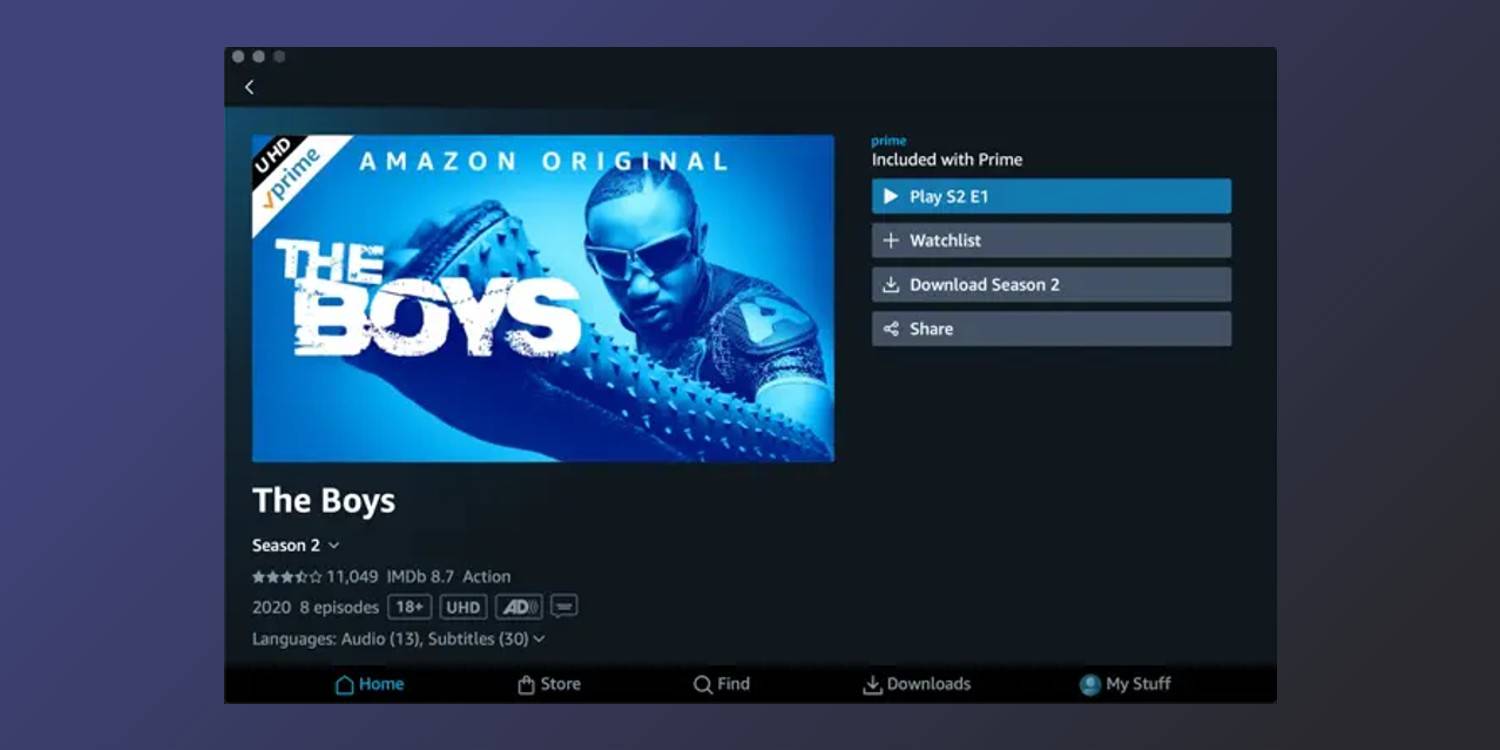
As with any streaming app, an important component of Amazon Prime Video is being able to download your shows and movies for offline viewing. On any Mac or MacBook device, open the App Store, search for 'Amazon Prime Video,' and click the blue 'Install' button. Upon opening the app for the first time, users are asked to sign in with their Amazon login credentials. From there, downloading videos is dead simple. Click on a movie or TV show, click the 'Download' icon, and click 'Continue with download' on the pop-up that appears. Just like that, the video is downloading locally onto your Mac for offline viewing.

Tips For Prime Video Offline Downloads On Mac


It's worth choosing your preferred download quality before downloading a bunch of videos. To do this, click the 'My Stuff' button on the bottom navigation bar, then click the settings gear icon in the top-right corner, followed by 'Streaming & Downloading,' and 'Download quality.' Here, Amazon Prime Video has three tiers of download quality to choose from. Best (the default choice) uses about 2.9GB of data/storage per one hour of video. Better uses 1.4GB of data/storage for the same hour, while Good uses just 0.8GB of data/storage per hour.

Which one you should choose depends on a few factors. If you're someone who has to have the best-looking video when you're watching something, the 'Best' download quality will ensure downloaded videos are as crispy as possible. If you're downloading a few different titles but your Mac is low on storage, you'll want to select 'Good.' Want decent video quality but don't want to blow through your remaining storage? The 'Better' tier strikes a happy medium between Best and Good.

Prime users can also choose to have certain types of content downloaded automatically. From the same 'Streaming & Downloading' page, click the 'Auto Downloads' button to adjust automatic download preferences. When downloading a TV show, Auto Downloads automatically downloads a handful of episodes at once. By default, the feature is turned on and set to download three episodes at a time.

Users can change this, and choose to automatically download anywhere from one to five episodes at a time, have watched episodes automatically delete themselves, or disable Auto Downloads entirely if they'd rather not use the feature. If you're just picking random episodes to download, it probably makes sense to turn Auto Downloads off. However, if you're watching a series in order and want to catch up on a few episodes, it can be legitimately useful.


How To Find Your Downloads


Clicking the 'Downloads' button at the bottom of the app will immediately show all downloaded shows and movies on your Mac. To delete a downloaded video, click the 'Edit' button in the top-right corner, click the checkbox next to a video, and click the red 'Delete' button at the bottom of the screen. Similarly, if someone starts a download but wants to cancel it, click the three dots next to the downloading video and click 'Cancel download.' With those tips in mind, you're ready to start downloading Prime Video shows on your Mac like a pro.

There are a few things to keep in mind when downloading Amazon Prime Video content. For one, not every show or movie will be available for download. For those that are, there are some limits. Downloads for content obtained through a subscription — as opposed to rented or purchased — can only be downloaded to two devices at once. So, if a user has already downloaded a show onto two other devices, they’ll need to delete it from one before downloading it to their Mac. There are also limits to how many titles a person can download at a time, though these limits vary by location. For the most part, users shouldn’t run into any issues if they’re not going overboard with downloading.

In addition to downloading Prime Video titles on Mac, the streaming service also supports offline downloading on other devices. This includes iOS, Android, Windows, and Amazon's Fire tablets. The steps vary slightly for these other platforms, but macOS isn't the only place where you can download Amazon Prime Video shows for offline viewing.


Source: Amazon 1, 2

Read More Comments

How To Transfer Signal Conversations To A New Phone

How To Transfer Signal Conversations To A New Phone

Signal brings a lot of great messaging app features to the table, one of which is a transfer tool (available for Android and iOS) that makes moving conversations from an old phone to a new one as simple as can be. Unlike apps such as WhatsApp, Telegram, and Facebook Messenger, Signal can only be used on one phone at a time, and all conversations are stored locally on the device. In other words, if someone logs into their Signal account on a new phone, they won’t immediately see any of their previous conversations. Thankfully, though, Signal's migration tool does make it possible to move them across.

For people who use an iPhone and just upgraded to a new model, Signal reassures users that the process of transferring chats is pretty straightforward. To get started, make sure both the new and old iPhones are close to each other, have Wi-Fi and Bluetooth enabled, and Low Power mode disabled. On the new iPhone, install the Signal app from the App Store and complete the login/registration process. Once that’s done, tap 'Transfer from iOS Device’ and then ‘Next.’ Now, open Signal on the old iPhone, and there should be a pop-up on the screen. Tap ‘Next’, a small camera will open, and then use the old iPhone to scan the QR code on the new iPhone. This begins the transfer process, which should only take a few minutes.

Related :
How To Tell If Someone Unfriended You On Snapchat


Transfer Signal Messages Between Android Phones


Signal's transfer tool is also available for Android users. The steps are a bit different, though the end result is the same. On the new Android phone, install Signal, open the app, and tap 'Transfer or restore account.' Enable any permissions that are requested, tap 'Transfer from Android device,' and tap 'Continue.' Now go to the old Android phone, tap the profile icon, tap 'Account,' tap 'Transfer account,' and tap 'Continue.' From here, there are just a few final steps. Move the two phones next to each other, accept the alert on the new Android phone, make sure the seven-digit code on both devices is the same, and tap 'Continue' on each one.

Android users also have the option of transferring Signal messages with a backup file. First, you'll want to make sure a backup file is made. On your old phone, tap the profile icon, tap 'Chats,' tap 'Chat backups,' and tap 'Turn on.' Follow the on-screen instructions, and within a few seconds, you'll get a backup folder containing all of your message data. Once the backup file's created, move it to the new Android phone, open Signal, tap 'Transfer or restore account,' tap 'Restore from backup,' and enter your 30-digit passcode.

No matter if chats are being transferred across Androids or iPhones, all conversations remain end-to-end encrypted just like they were on the old device, ensuring everything remains just as secure as ever. Having to manually transfer conversations in the first place is a slight annoyance compared to some of Signal's competition, but considering nothing is lost from a data privacy perspective, it's a pretty great solution all-around.

Can You Transfer Signal Messages From Android To iPhone?


For iOS users, Signal supports chat transfers between two iPhones, from an unlinked iPad to an iPhone, from an iPhone to an unlinked iPad, and from an iPad to an iPad. Android users can only move chats from one Android phone to another. Signal desktop users are also at a disadvantage, as there's no way to transfer chats to a new device. At the moment, Signal does not offer cross-platform chat transfers, unlike apps like WhatsApp, which means users switching operating systems don't have any way to migrate their chats to a new device.

Like WhatsApp, Signal also offers users the ability to link devices to their phone. Users can link either a desktop or iPad to their smartphone. At the moment, Signal does not offer the ability to link Android tablets or multiple phones. For those using linked devices, Signal unfortunately doesn't offer the ability to transfer chats from a linked desktop or iPad to a new phone. This is because linked devices do not have the same Signal account information as a smartphone.

Related :
This Is Why The iPad 10th-Generation Doesn’t Work With Apple Pencil 2


How To Change Your Phone Number On Signal


Signal lets users change their phone number, provided that they have an active Signal account, and are changing their number while using the same phone. If a user is unable to send or receive Signal messages (check this by using Note To Self), does not have access to their phone, or has reset their phone, they will not be able to migrate to a new phone number.

Provided the user is accessing Signal on the same device, the first step is to open Signal Settings. Next, tap 'Account' and then 'Change Phone Number.' Once this option is selected, users will not be able to go back and undo the change. Tap 'Continue' and enter the old phone number in the first field and new phone number in the second field. Tap 'Continue' or 'Done.' Confirm the new number, or alternatively, tap 'Edit Number' if the new number entered was incorrect. Tap on 'Change Number' and follow the instructions to complete the registration.

If a user doesn't have access to their old phone number, they will first need to delete their Signal account and then register with their new number. They will lose all access to their message history if this happens. As a safety feature, if someone registers for Signal with the old phone number, they won't be able to access the user's message history. In addition, Signal will notify a user's contacts of a safety number change if they continue exchanging messages with the old phone number.

Source: Signal 12

Read More Comments